How to Migrate your old MCServerHost account.
How to Migrate your old MCServerHost account to the new MCServerHost.
How to Migrate your old MCServerHost account to the new MCServerHost.
We have been hard at work building a brand new MCServerHost, and it is a much more stable system with a long list of new features and improvements. Because of that, everyone will eventually need to migrate their account from the old site at https://www.mcserverhost.com/ over to the new one at https://beta.mcserverhost.com/.
The move itself only takes a minute or two and costs nothing, and your balance and saved cards come along with you. Your servers do not travel across on their own though, so you will need to back up your worlds and other server files and delete your old servers before you can migrate. This guide walks you through what moves, what stays, how to back up your data, and how to finish the migration.
What Moves and What Stays
Before you start, it helps to know exactly what carries over and what does not. You can also find this same breakdown on the migration page itself.
What moves to the new MCServerHost:
- Your account: your username, email and password.
- Your balance: whatever is currently in your wallet (for example, $0.00).
- Your saved cards.
- Your forum profile: your picture, banner, role and description.
What stays behind on the old site:
- Your servers.
- Access to servers other people shared with you.
- Two-factor authentication (you will need to set this up again on the new site).
- Invoices and payment history.
- Sign-in connections.
Note: Your servers do not move across, and you cannot take your account with you until you have deleted them. That makes this the most important step to plan for, so make sure you back everything up first.
Backing Up Your Server Before You Migrate
Since your servers stay on the old site, anything that only exists on them, such as your worlds, plugins, mods and configuration files, will not follow you. Before you delete anything, take a copy of everything you want to keep so you can restore it on a fresh server at the new MCServerHost.
The easiest way to grab your files is over SFTP, which lets you connect to your server and download entire folders straight to your computer. We have a full walkthrough for that here: How to Use SFTP with MCServerHost.
If you only need your world, you can follow this guide instead: How to Download Your Minecraft World from Your Server.
Either way, the goal is the same. Get a copy of your data onto your own device before you remove your old servers.
Deleting Your Servers
Once your data is safely backed up, you need to clear out every server on your account before the migration will let you through. There are two ways to do this.
- Cancel your subscription: If your server is on a paid plan, cancelling the subscription removes the server from your account.
- Delete the server: You can also delete a server directly, which has the same effect.
When you cancel a subscription or delete a server, the remaining time left in your billing cycle is reimbursed straight back to your MCServerHost account balance. This is based purely on the time remaining and not on your usage, so think of it like rent: you get the unused portion back, no matter how much you used the server. Because your balance moves with your account, that refunded amount comes along to the new site as well.
Moving Your Account to the New MCServerHost
With your servers deleted and your data backed up, you are ready to migrate.
Log in to your account on the old site at https://www.mcserverhost.com/ and navigate to https://www.mcserverhost.com/account/migrate.
In the Password field, enter your account password to confirm it is really you.
Click the Move my account button.
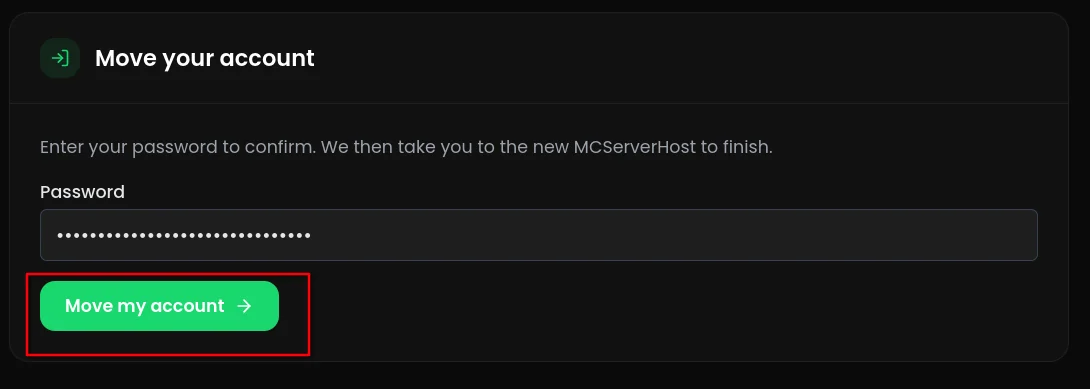
- You are then taken across to the new MCServerHost.
Conclusion
Migrating to the new MCServerHost is quick and free, and it moves your account, balance, saved cards and forum profile across without any hassle.
Similarly, if you are having any type of issue or problem with your account or server at MCServerHost you can always get in touch with us by joining our Discord server or writing us at support@MCServerHost.com.
Related guides
- How to Upload Files to Your MCServerHost Server: Learn how to upload files to your Minecraft server.
- Complete Guide to Server Snapshots on MCServerHost: Learn how MCServerHost Snapshots work, how they differ from backups, and how to create, manage, and restore them safely.
- How to Set Up PL-Hide on Your Minecraft Server: Stop players seeing your plugin list and clean up tab-completion of plugin commands.
- How to Change the Gamemode on Your Minecraft Server: Set the default gamemode, force it on everyone, or change one player's mode.