How to Download Your Minecraft World from Your Server
Download your Minecraft world files safely and keep a backup or move them to another server.
Download your Minecraft world files safely and keep a backup or move them to another server.
Whether you're switching hosts, making a local backup, or moving your world to singleplayer, downloading your world files is straightforward once you're connected via SFTP.
Before You Start
You'll need an SFTP client connected to your server. If you haven't done that yet, follow our How to Use SFTP with MCServerHost guide first; it covers installing FileZilla and getting your credentials in a few steps.
Stop Your Server First
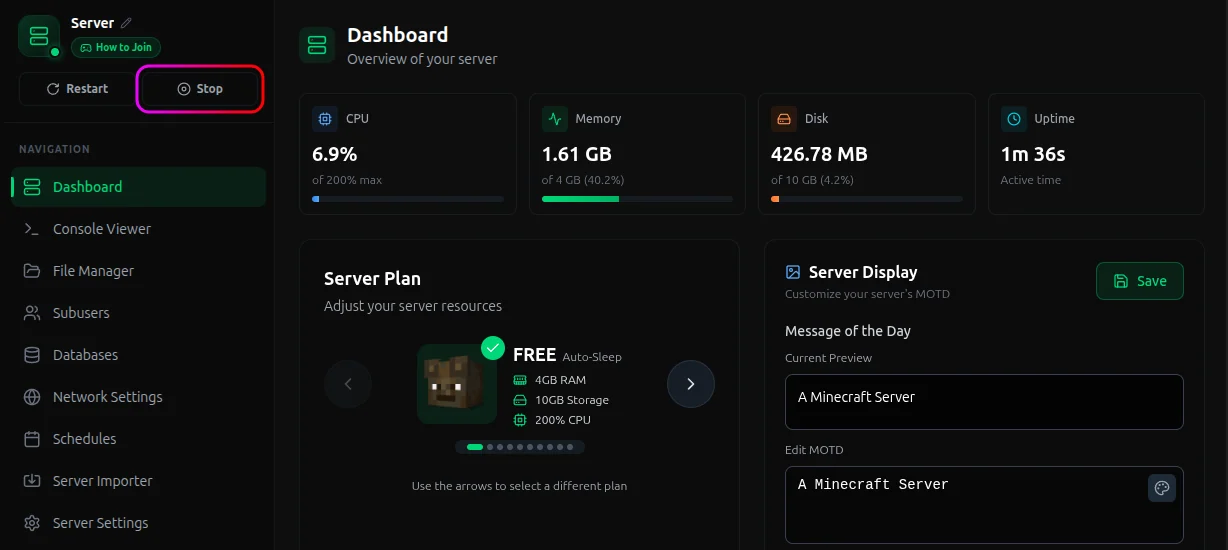
Always stop your server before downloading world files. Downloading while the server is running can result in corrupted or incomplete chunks.
- Log in to your MCServerHost dashboard.
- Stop your server from the control panel.
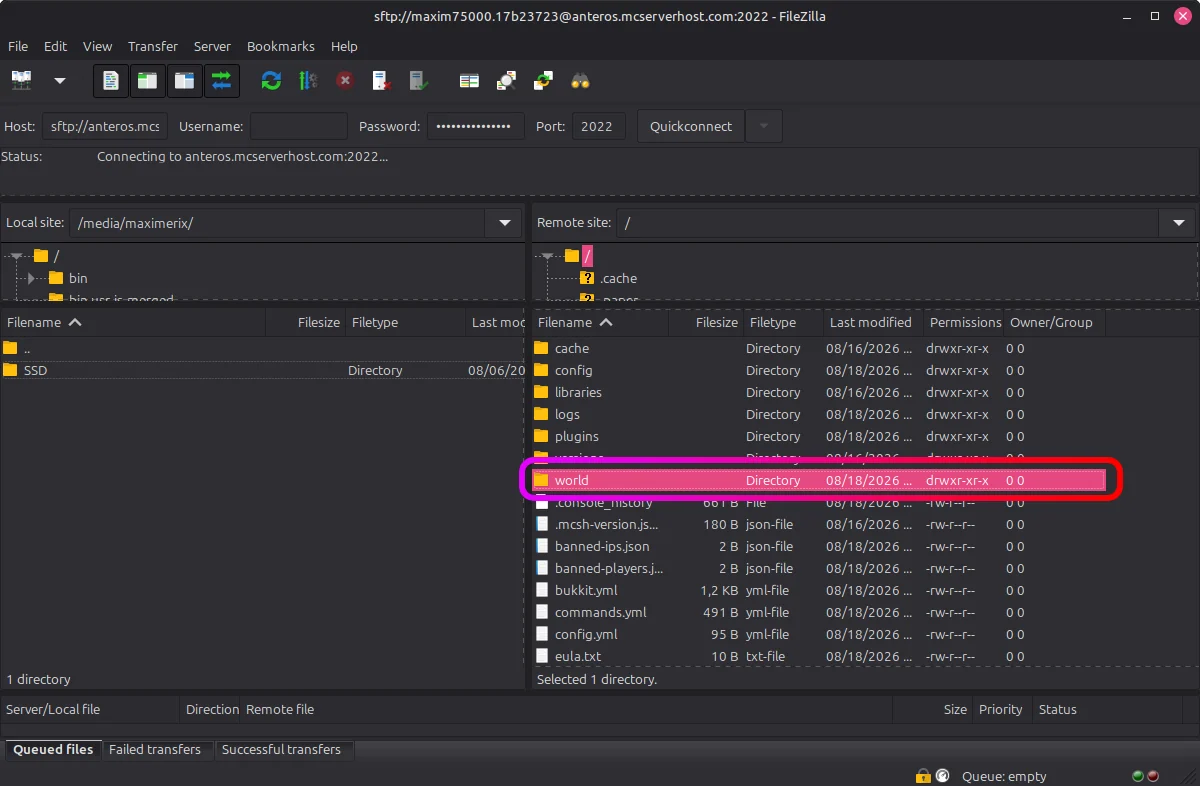
Find Your World Folders
Open your FTP client and browse your server's root directory. Your world data is split into one or more folders depending on your server software:
| Server software | World folders |
|---|---|
| Vanilla | world |
| PaperMC | world, world_nether, world_the_end |
| Spigot | world, world_nether, world_the_end |
| Bukkit | world, world_nether, world_the_end |
| Forge | world |
| Fabric | world |
| Bedrock (Nukkit/PMMP) | worlds/ |
Download all relevant folders if you want the full world including the Nether and End.
Download the Files
Select the world folder(s), then drag and drop them to a location on your device. Depending on your world size and internet speed, this can take anywhere from a few minutes to half an hour.
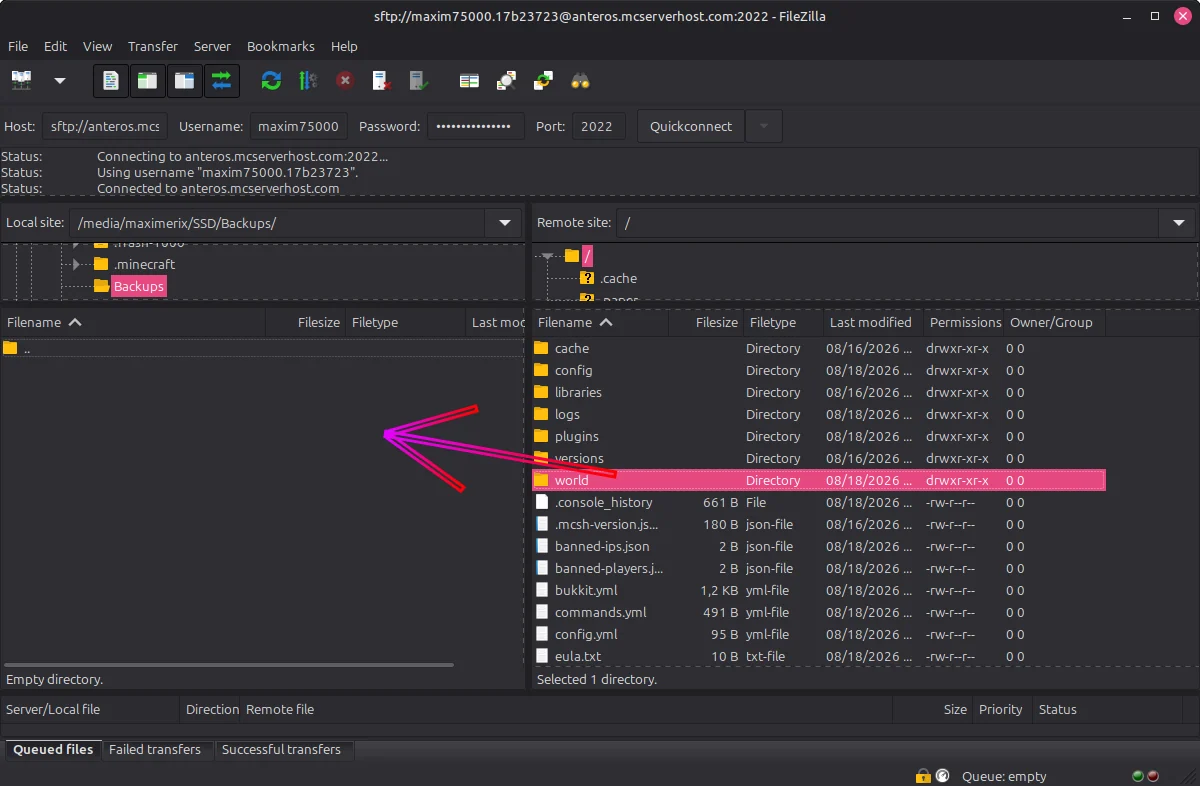
Once the transfer finishes, you're done. The world folder is ready to be uploaded to another server, opened in singleplayer, or kept as a backup.
If you run into any issues on MCServerHost, join our Discord server or reach us at support@mcserverhost.com.
Related guides
- How to Write a Guide That Gets Approved: Learn what staff look for in a guide and how to fill in each field so yours is approved.
- How to Use Color Codes on Your Minecraft Server: Add colors and formatting to chat, signs, and messages
- How to Set Up DriveBackupV2 on a Minecraft Server: Learn how to configure DriveBackupV2 to automatically back up your Minecraft server.
- How to Use and Automate Backups on Your Minecraft Server: Use and schedule backups so a bad update or a griefer never costs you the