How to Use SFTP with MCServerHost
Use SFTP for larger uploads, backups, and easier file management from your desktop.
Use SFTP for larger uploads, backups, and easier file management from your desktop.
The built-in File Manager covers most day-to-day tasks, but SFTP is handy when you're uploading large files, pulling a full backup, or just prefer working in a desktop client. This guide uses FileZilla, but WinSCP works the same way if you're on Windows.
Install an SFTP Client
Download one of the recommended clients:
- FileZilla: filezilla-project.org, free, works on Windows, macOS, and Linux
- WinSCP: Windows only, good if you prefer an Explorer-style interface
Get Your SFTP Credentials
- Log in to your MCServerHost dashboard and open your server.
- Go to File Manager, then click the SFTP tab at the top.
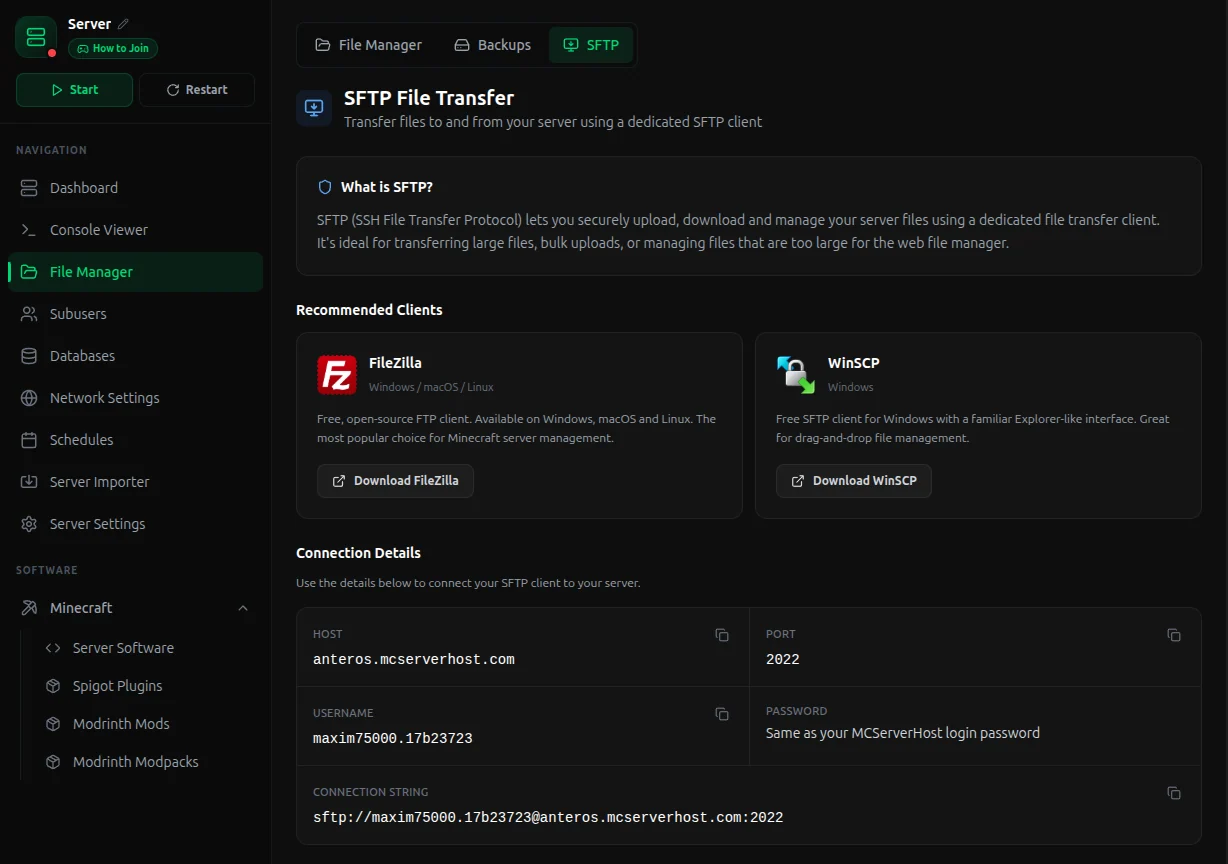
- Your connection details are listed there: host, port, username, and a connection string you can copy directly.
The password is your MCServerHost account password.
Connect to Your Server
- Open FileZilla (or WinSCP).
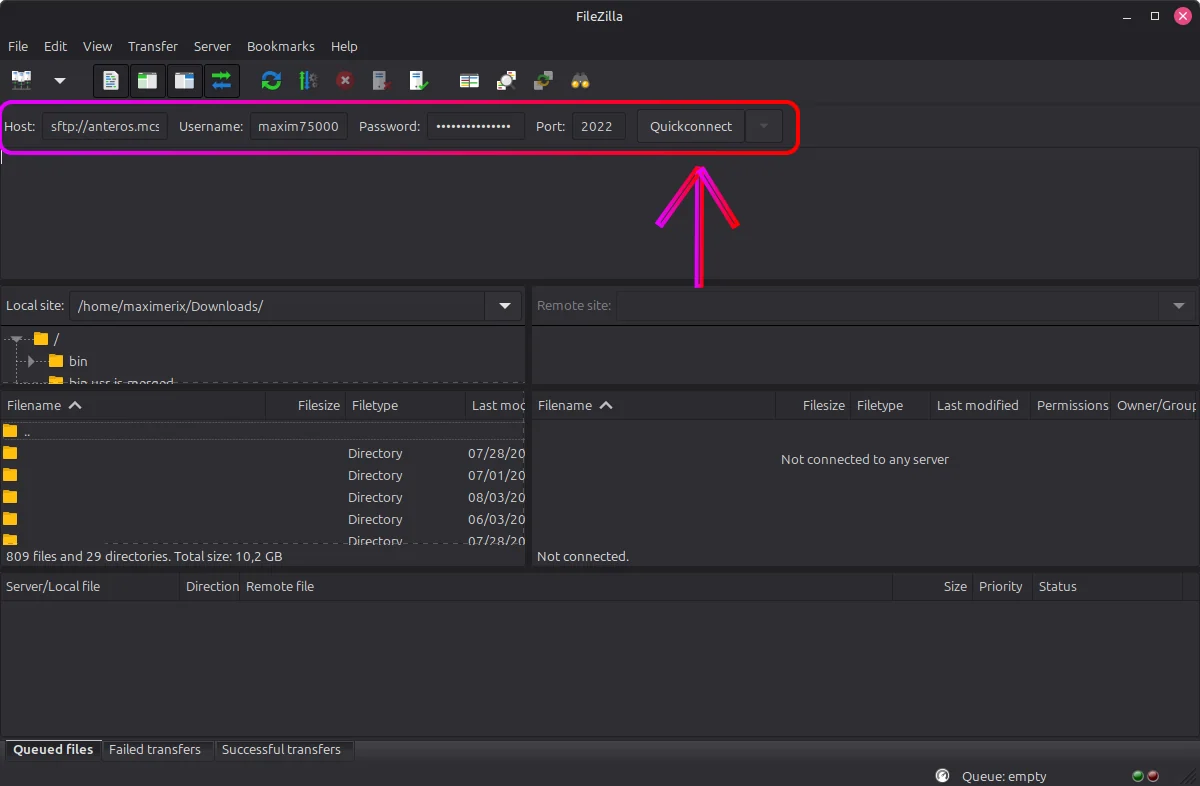
- Fill in the connection fields:
- Host: shown in the panel (e.g.
anteros.mcserverhost.com) - Port: 2022
- Username: shown in the panel
- Password: your MCServerHost account password
- Host: shown in the panel (e.g.
- Make sure the protocol is set to SFTP, not regular FTP.
- Click Quickconnect (or Login in WinSCP).
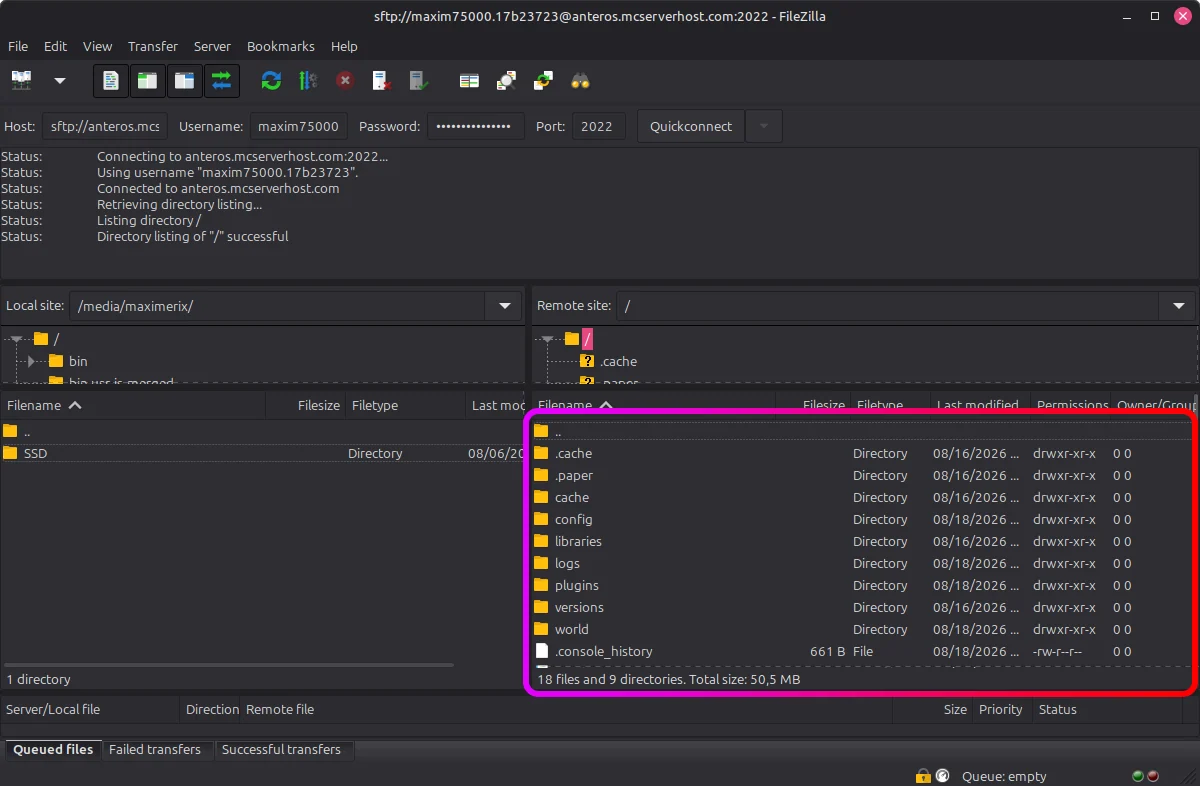
Your server files will appear in the right panel, local files on the left. Drag in either direction to upload or download, just like a regular file browser.
Tip: In FileZilla, go to File > Site Manager > New Site and save your details there. Next time you can connect in one click without re-entering anything.
If you run into any issues, join our Discord server or email us at support@mcserverhost.com.
Related guides
- How to Migrate your old MCServerHost account.: How to Migrate your old MCServerHost account to the new MCServerHost.
- How to Upload Files to Your MCServerHost Server: Learn how to upload files to your Minecraft server.
- Complete Guide to Server Snapshots on MCServerHost: Learn how MCServerHost Snapshots work, how they differ from backups, and how to create, manage, and restore them safely.
- How to Set Up PL-Hide on Your Minecraft Server: Stop players seeing your plugin list and clean up tab-completion of plugin commands.