How to Use and Automate Backups on Your Minecraft Server
Use and schedule backups so a bad update or a griefer never costs you the
Use and schedule backups so a bad update or a griefer never costs you the
This guide is deprecated. Please use How to Use Server Snapshots instead.
The worst time to think about backups is right after something breaks. A corrupted world, a plugin that ate your economy data, a rollback gone wrong. None of it matters much if you have a recent backup to drop back to. The trick is making them happen on their own instead of relying on yourself to remember.
MCServerHost has a Backups feature built into the panel. Set it once and it runs on a schedule.
What a Backup Actually Saves
A panel backup is a full snapshot of your server files: world folders, plugins, configs, server.properties, everything in the server directory at the moment it runs. Restoring one puts the whole server back to that point. It's not a per-player or per-region rollback. For that you want CoreProtect. Backups are your "the whole thing is broken, get me back to yesterday" option.
Create a Manual Backup First
Before you trust the schedule, take one by hand so you know where the button is.
- Log in to your MCServerHost dashboard and open your server.
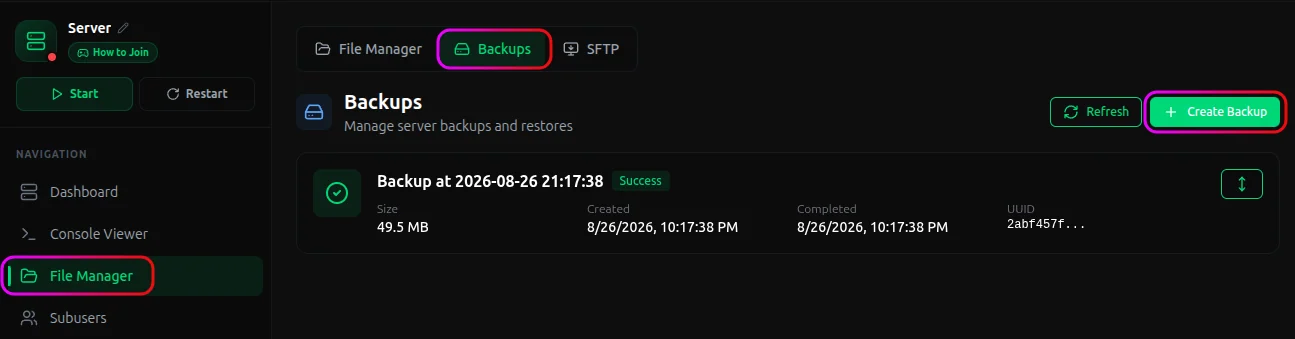
- Go to the File Manager and then Backups tab at the top of the tab and click Create Backup.
- After clicking, give it a name or keep as it is, and click Create Backup in the dialog to confirm.
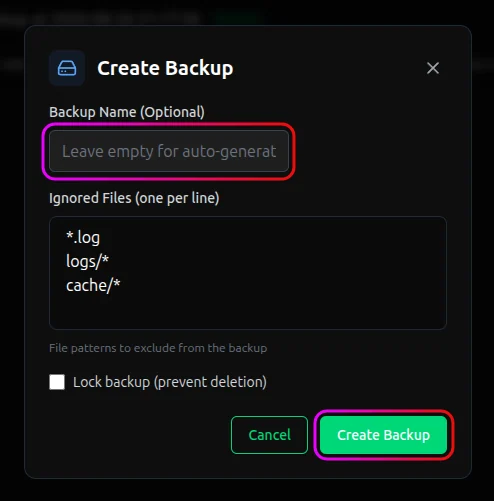
- Wait for it to finish, depending on how large is the world can take from seconds to several minutes.
Set Up a Schedule
Manual backups are fine until you forget for three weeks. A schedule fixes that.
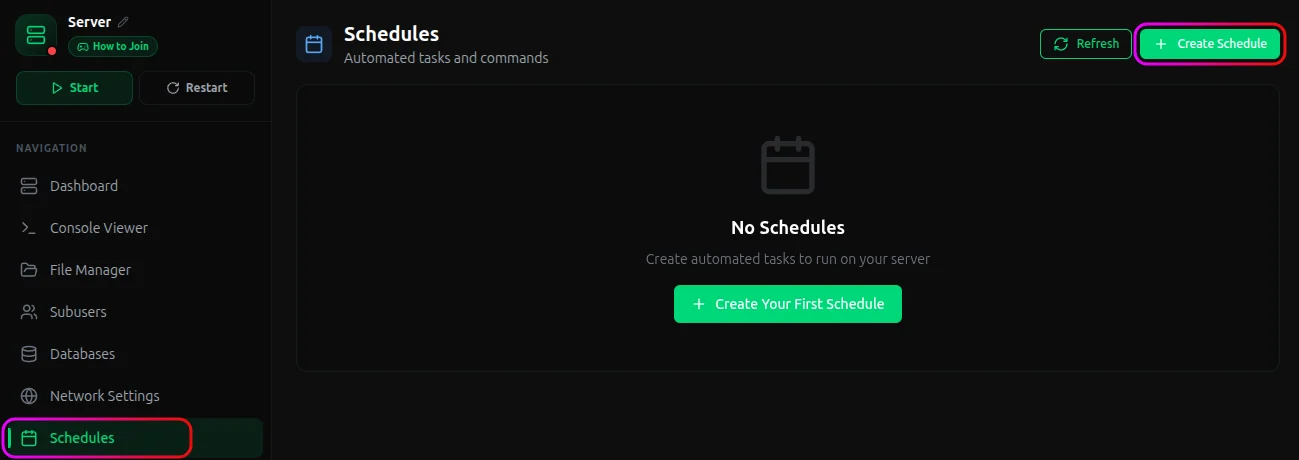
- In the panel, open the Schedules section in the left sidebar and then Create Schedule.
- Give it a name (like "Daily Backup") and set the cron fields. Once a day at 4 AM:
Minute: 0
Hour: 4
Day (Month): *
Month: *
Day (Week): *
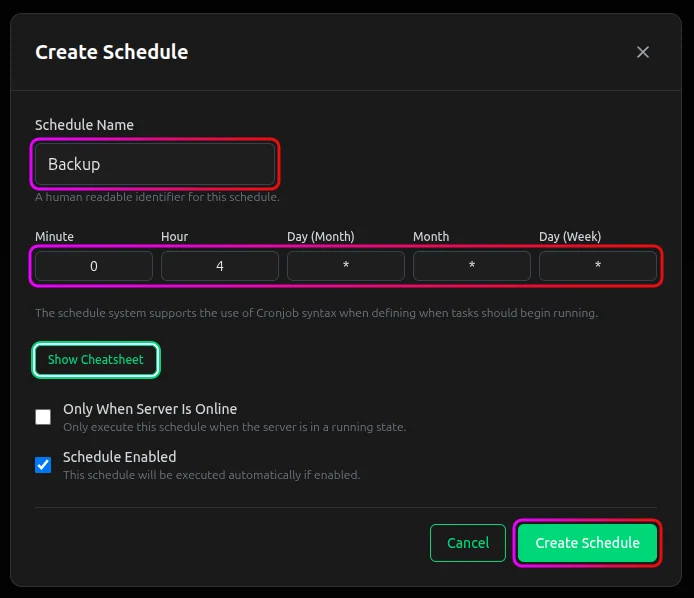 Click Create Schedule.
Click Manage on the new schedule, then Add Task. After that set Action Type to Backup.
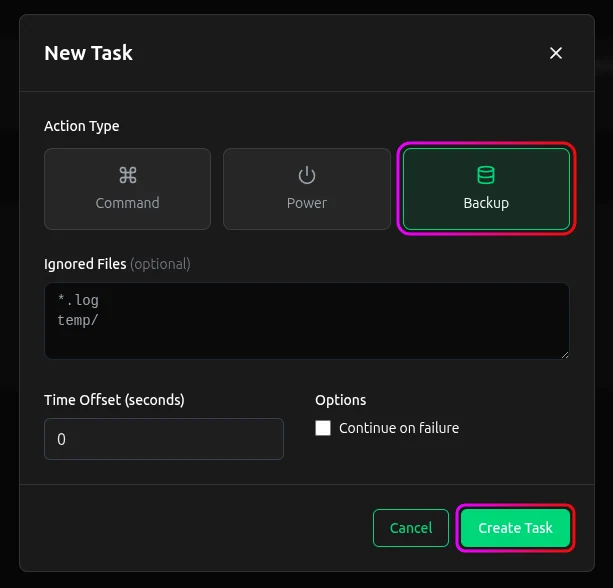 and finally click Create Task.
Done, the schedule now runs a backup at 4 AM every day.
How Many to Keep
Most plans cap how many backups you can store at once, either by count or total size. When you hit the cap, new backups fail instead of overwriting old ones, so a rotation matters.
- Keep a few recent daily backups for quick rollbacks.
- Before any big change (version update, major plugin swap, world edit), take a named manual backup and lock/keep it so the rotation doesn't delete it.
Important Considerations
- Backups aren't instant restores of live data. A backup taken at 4 AM won't contain anything built at noon. For active servers, daily is a floor, not a ceiling. Bump the frequency if a lost day would hurt.
- Off-site copies matter for the stuff you can't lose. Panel backups live on the same infrastructure as your server. For irreplaceable worlds, download a copy elsewhere now and then.
Conclusion
Take one manual backup today, set a daily schedule, and take a named backup before anything risky. That covers 95% of the disasters people show up in support with.
If you run into issues on MCServerHost, join our Discord server or contact us at support@mcserverhost.com.
Related guides
- How to Migrate your old MCServerHost account.: How to Migrate your old MCServerHost account to the new MCServerHost.
- How to Upload Files to Your MCServerHost Server: Learn how to upload files to your Minecraft server.
- Complete Guide to Server Snapshots on MCServerHost: Learn how MCServerHost Snapshots work, how they differ from backups, and how to create, manage, and restore them safely.
- How to Set Up PL-Hide on Your Minecraft Server: Stop players seeing your plugin list and clean up tab-completion of plugin commands.