How to Change Your Server Icon
A quick and easy guide on how to upload and change your Minecraft server icon to stand out in the server list.
A quick and easy guide on how to upload and change your Minecraft server icon to stand out in the server list.
Your server's icon is the very first thing players see in their multiplayer server list, keeping the default Minecraft globe icon makes your server look generic, and changing it to something unique ensures you stand out instead of blending in with the crowd.
Requirements
- A Minecraft Java Edition server.
- An image file up to 10 MB.
Uploading Your Icon
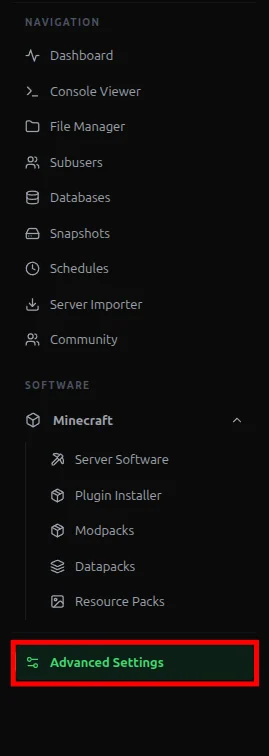
- Navigate to your Advanced Settings
- Locate the Server icon section.
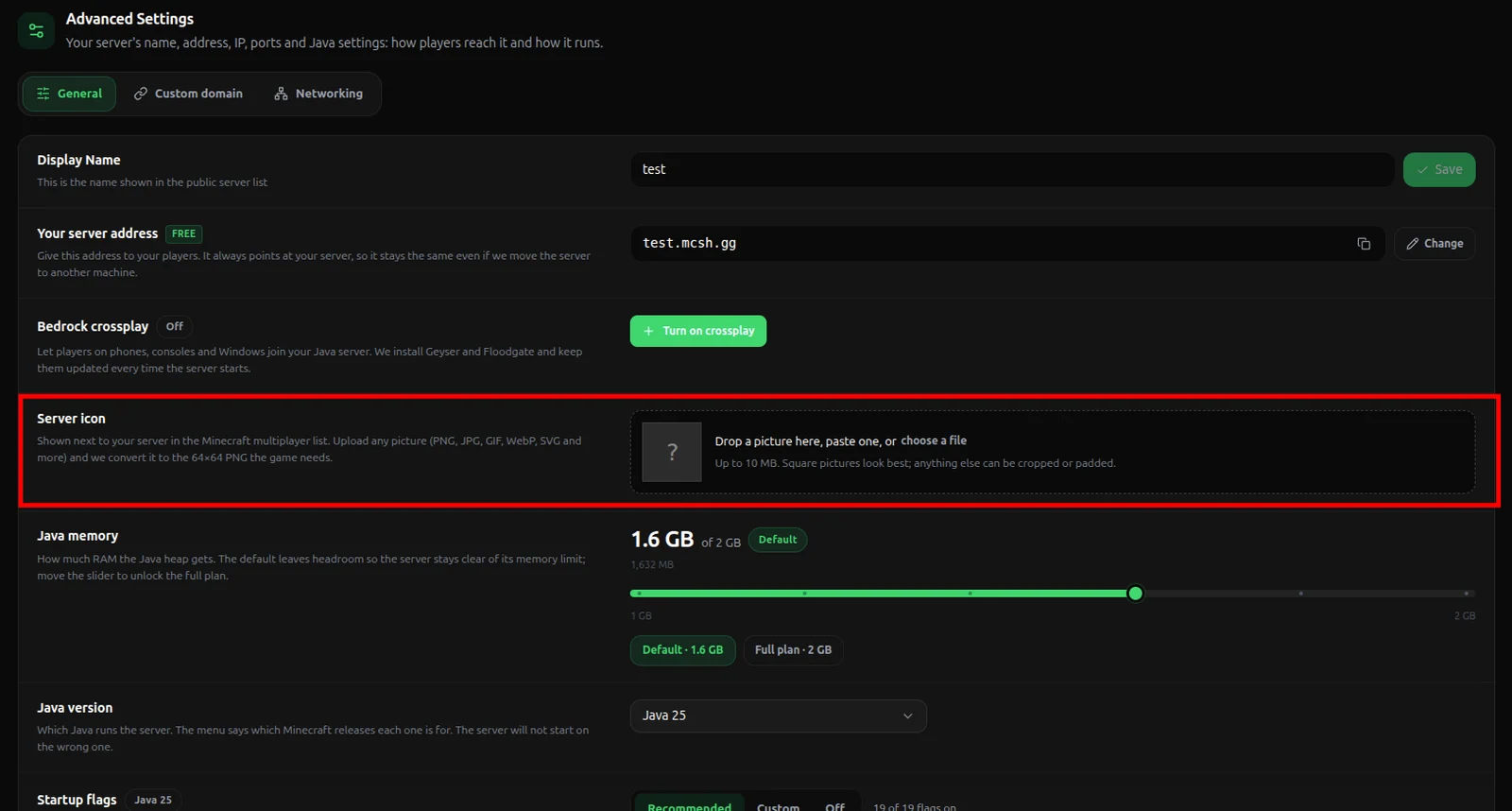
- Drag and drop your picture, or click to choose a file.
Apply and Restart
- Restart your server completely.

- Open your Minecraft multiplayer menu and check out your fresh custom icon!

Similarly, if you are having any type of issue or problem with your server at MCServerHost you can always get in touch with us by joining our Discord server or writing us at support@MCServerHost.com.
Related guides
- How to Migrate your old MCServerHost account.: How to Migrate your old MCServerHost account to the new MCServerHost.
- How to Upload Files to Your MCServerHost Server: Learn how to upload files to your Minecraft server.
- Complete Guide to Server Snapshots on MCServerHost: Learn how MCServerHost Snapshots work, how they differ from backups, and how to create, manage, and restore them safely.
- How to Set Up PL-Hide on Your Minecraft Server: Stop players seeing your plugin list and clean up tab-completion of plugin commands.